 Listen to this article
An easy, secure, and private way to pay.
Apple pay lets you make purchases with your ADCB card using any apple device - just like you would with your physical card - in stores, online, and in apps

Apple Pay on one.
Apple Pay on all.
Apple Pay is built into iPhone, Apple Watch, Mac, iPad, and Apple Vision Pro. If you add your ADCB card to Apple Wallet on iPhone, you’ll have the option to add it to your other Apple devices in one easy step.Shop in person. Online.
Or in apps.
Apple Pay is a contactless payment method accepted by millions of merchants worldwide. It allows you to pay easily using your iPhone, Apple Watch, or by scanning a code on your computer with your iPhone.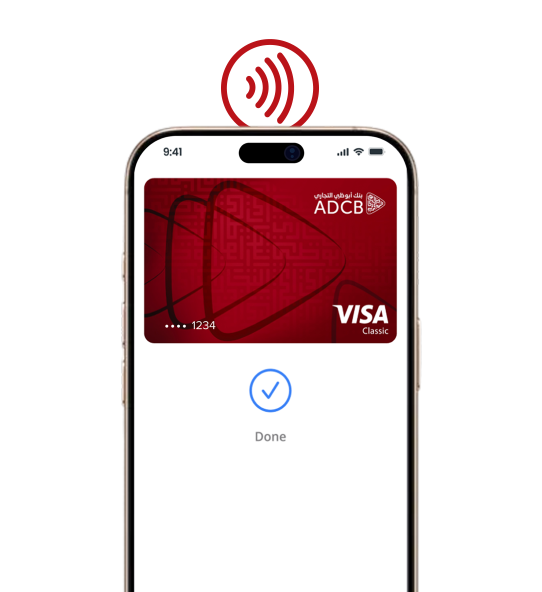

Tap. Pay. Done.
Apple Pay lets you check out faster without entering your address or CVC code—pay securely with your ADCB card using just a glance or a touch.
Designed to be secure.
So only you can pay.
Every Apple Pay transaction is securely authenticated using Face ID, Touch ID, or your passcode. Your ADCB card details are never shared with merchants or stored on Apple servers, and if your iPhone is lost, you can use Find My to quickly suspend your card.
Add your ADCB card
in a few steps.
Open Apple Wallet on your iPhone.
Tap the Add (+) button, then tap Debit or Credit card.
Follow the steps on the screen to add a new card.
The card benefits you love. With Apple Pay.
When you use your ADCB card with Apple Pay, you will get the benefits and rewards you love - just like you would with your physical card
FAQs
Apple Pay does not send or include your actual card number with your payment process; a virtual card number is used to present your account information, ensuring that your card details remain safe and confidential . In addition, you need to authorize each payment using biometric authentication (Face/Touch ID) or your device’s passcode. Your full card number is never stored on your device or on Apple servers, and it cannot be shared with merchants
Any ADCB Visa cardholder — either credit or debit — can use Apple Pay.
No, Apple Pay does not have access to your bank account(s).
From your wallet, tap the ADCB card that you want it to be your default payment card, hold and drag the card in the front of your other cards. Then, you default card is successfully selected.
Yes, your card rewards will be earned on Apple Pay transactions.
Your ADCB cards’ purchase limits apply. For more information, please select your card type from the ADCB official website and review the cards’ limits.
You can un-register and link another card for the service at any given time by accessing the Apple Wallet Settings and select your card and tap the three dots on the top right (…) and select card details. Scroll down and tap the button “Remove Card” or by calling our Contact Center on 16862.
Select “Settings”, tap the “Wallet and Apple Pay” menu, select the card you want to remove, then tap “Remove Card” on your Apple device.
Please wait for the checkmark on your device before moving the device away from the reader. The terminal will then indicate whether the transaction was successful.
You can view the last 10 transactions performed by your card(s), noting that there is no transaction history available for Apple Watch devices.
No, your card(s) will remain linked to the wallet with no change.
You need to have an Apple ID and signed-in in iCloud. Apple Pay is disabled on iPads for educations or for a child under 13 years old. Minimum Software updates needed are: iOS17, WatchOS 10 and MacOS 14 and above. Minimum Hardware needed are: iPhone XR, and Watch Series 4 and all above.